














In this tutorial, you'll learn how to connect Airtable to the Ahrefs API using Data Fetcher. You'll pull Domain Rating data for a list of URLs in your base, so you can compare authority scores across competitors, clients, or prospects at a glance.
Domain Rating is just one of many Ahrefs API endpoints you can connect to Airtable. The same approach works for pulling backlink profiles, organic keyword rankings, referring domains, and competitor analysis data. Once you're comfortable with the setup, you can adapt it to any Ahrefs endpoint to build SEO dashboards, track competitors, or monitor your backlink growth over time.
What you'll learn:
- Connect Airtable to the Ahrefs API without writing code.
- Import Domain Rating data for multiple URLs into your base.
- Set up automatic syncing to keep your SEO data up to date.
Set Up Your Websites Table
Before connecting to the Ahrefs API, prepare your Airtable base with the right fields and views.
1. Create a table called "Websites" with a URL field containing the domains you want to analyze.
2. Add a new field called "DR" and set the field type to Number. This is where Data Fetcher will store the Domain Rating for each URL.
3. Create a new Grid view called "Needs DR" with the following filters:
- URL is not empty.
- DR is empty.
This filtered view ensures Data Fetcher only processes URLs that don't already have a Domain Rating, avoiding duplicate API calls.
Install the Airtable Ahrefs Integration
1. Add the Data Fetcher extension to your Airtable base.
2. Sign in to Data Fetcher or sign up if you don't have an account.
3. Once you're logged in, click + Create request.
Connect to the Ahrefs API in Airtable
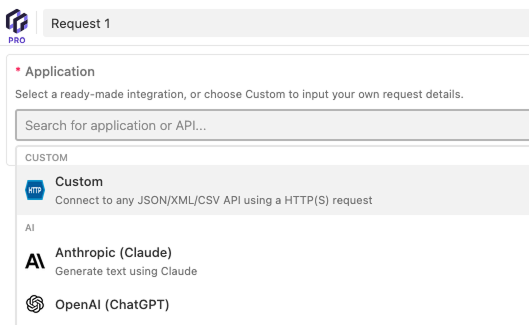
1. Select Custom under Application.
2. Rename the request to "Import Domain Rating".
3. Copy and paste the URL for the Ahrefs domain rating endpoint into the URL input:
https://api.ahrefs.com/v3/site-explorer/domain-rating4. Under Authorization, select Bearer Token and paste in your Ahrefs API key. You can create an API key in your Ahrefs Acount settings / API keys.
5. Click Add + under Parameters and add the following:
- For the parameter name, enter
target - For the parameter values, click the + button on the right-hand side of input.
- Under Field, select "URL".
- For Use value from, ensure "Each record (in a view)" is selected.
- Under Input view, select "Needs DR".
- Click Confirm.
The "target" parameter tells the Ahrefs API which domain to look up. By referencing the URL field in your table, Data Fetcher will run the request once for each URL in your "Needs DR" view.
6. Add another parameter, by clicking Add + under Parameters.
- For the name, enter
date. - For the value, enter today's date in the format YYYY-MM-DD (e.g.
2026-03-17).
The "date" parameter is set to a fixed date here. If you set up automatic syncing later, you can make this dynamic by creating a formula field in Airtable that outputs today's date in YYYY-MM-DD format, then referencing that field instead of a hard-coded value.
7. Click Save and Run in the bottom right corner.
Map the Ahrefs API Response to Your Table
After the request runs, the Response Field Mapping screen will open. This is where you choose which fields from the Ahrefs API to import into your Airtable base and how they map to your existing table fields. The Ahrefs Domain Rating endpoint returns two fields: Domain rating and Ahrefs rank.
1. Under Domain rating, click Existing field and select DR.
2. Under Ahrefs rank, leave it set to New field. Data Fetcher will create an "Ahrefs rank" field in your table automatically.
3. Click Save & Run.
Data Fetcher will now run the request for each URL in your "Needs DR" view. Back in your default Grid view, you'll see the Domain Rating and Ahrefs rank populated for each website.
Make the Date Parameter Dynamic
The date parameter in your request is currently hard-coded, which means it will return data for the same day every time the request runs. To keep your data fresh, you can replace it with a dynamic date that always uses today's date.
1. In your Websites table, add a new Formula field called "Today".
2. Paste the following formula:
DATETIME_FORMAT(TODAY(), "YYYY-MM-DD")This formula outputs today's date in the format the Ahrefs API requires (e.g. "2026-03-17").
3. Open your request in Data Fetcher and find the "date" parameter.
4. Remove the hard-coded date value. Click the + button, select "Today" under Field, and click Confirm.
5. Click Save.
The request will now use today's date every time it runs, so your Domain Rating data is always up-to-date.
Sync Ahrefs Data to Airtable Automatically
Currently, you need to manually click Run each time you want to pull Domain Rating data for new URLs. You can set up automatic scheduling so that Data Fetcher runs the request at regular intervals, keeping your Ahrefs data up to date.
Note: This requires a paid Data Fetcher plan.
Upgrade Your Account
1. Scroll to the Schedule / Trigger / Webhook URL tabs, select Schedule, and click Upgrade.
2. Choose a Data Fetcher plan that suits your needs and enter your payment details.
Set Up Automatic Scheduling
1. Under Schedule, click + Authorize.
2. A window will open where you'll be prompted to authorize the Airtable bases you want Data Fetcher to have access to. Click + Add resources to avoid needing to authorize bases in the future.
3. Click Grant access.
4. Schedule this request will now be switched on in Data Fetcher. Select a schedule based on intervals of "Minutes", "Hours", "Days", or "Months".
5 Click Save, and Data Fetcher will automatically pull the latest Domain Rating data from Ahrefs on your chosen schedule.
Import Other Ahrefs Data into Airtable
This tutorial used the Domain Rating endpoint, but the Ahrefs API offers many more endpoints you can connect to Airtable using the same approach. Select Custom under Application in Data Fetcher, swap in a different endpoint URL, and adjust the parameters to match.
Here are some popular Ahrefs endpoints to try:
- Referring Domains — import a list of domains linking to your site, including their Domain Rating and number of backlinks. Useful for monitoring your backlink profile and identifying new link building opportunities.
- Organic Keywords — pull the keywords a domain ranks for, along with search volume, position, and traffic estimates. Use this to track your own rankings or research competitor keyword strategies.
- Backlinks — fetch individual backlinks pointing to any URL or domain, with details like anchor text, referring page, and link type. Helpful for auditing your link profile or finding broken links.
- Top Pages — see which pages on a domain get the most organic search traffic. Use this for competitor content analysis or to identify your own best-performing pages.
You can find the full list of available endpoints and their parameters in the Ahrefs API documentation.
